by ezs | Apr 4, 2025 | evilzenscientist
Note for the future.
- Deletion performs a soft delete, which leaves the Log Management solution in place, which then can’t be deleted
- Make sure you do a hard delete, which allows the Log Management solution to be deleted.
I wish I remembered this every time.
by ezs | Apr 1, 2025 | evilzenscientist
Unmanaged disks (aka classic Azure disks) where the VHD lives inside a storage account are end of life at the end of September 2025.
We have a handful that are underpinning some older appliances.
Finding them is a simple Kusto search:
resources
| where type == “microsoft.compute/virtualmachines”
| join kind=leftouter (ResourceContainers | where type==’microsoft.resources/subscriptions’ | project subscriptionName=name, subscriptionId) on subscriptionId
| where properties.storageProfile.osDisk.managedDisk == “”
| extend osDiskName = properties.storageProfile.osDisk.name
| extend osDiskUri = properties.storageProfile.osDisk.vhd.uri
| project subscriptionName,resourceGroup, vmName = name, osDiskName, osDiskUri
| union (
resources
| where type == “microsoft.compute/virtualmachines”
| mvexpand dataDisk = properties.storageProfile.dataDisks
| where dataDisk.managedDisk == “”
| extend dataDiskName = dataDisk.name
| extend dataDiskUri = dataDisk.vhd.uri
| project vmName = name, dataDiskName, dataDiskUri, resourceGroup
)
by ezs | Mar 23, 2025 | evilzenscientist
Went into Mailchimp and did some much needed cleanup.
Archived some 50% of the mailing list that had unsubscribed.
I need to dig more into the platform, it’s been neglected for too long.
by ezs | Dec 4, 2024 | evilzenscientist
I’ve been using this term to describe football, aka American football, aka gridiron, for many many many years.
I was surprised that there were zero hits on either Google or Bing search for this term.
This is absolutely a blog post to make sure it gets indexed 😀
by ezs | Aug 29, 2024 | evilzenscientist
Today was the end of my experiment with MySQL PaaS in Azure.
To be honest – performance, metrics and security were as described. Private connectivity within the virtual network, horizontal and vertical scaling, great metrics.
I got burned twice.
Once with a “potential bug” that burned $65k of Azure spend in a few hours (that was eventually refunded!), more recently with the Azure portal throwing errors continually.

I’ve exported the data, reimported to an IaaS MySQL/MariaDB instance – and moved on.
by ezs | Jan 13, 2024 | evilzenscientist
This turned out to be really simple; and there are some really good tools and docs at https://dmarcian.com/
- set up DKIM DNS records
- CNAME selector1._domainkey –> selector1-{domain}._domainkey.{office365domain}.onmicrosoft.com
- CNAME selector2._domainkey –> selector2-{domain}._domainkey.{office365domain}.onmicrosoft.com
- set up DMARC DNS records
- TXT _dmarc –> correct DMARC policy
Then enable DKIM signing in the Defender portal https://security.microsoft.com
Email and Collaboration –> Policies and Rules –> Threat Policies –> Email Authentication settings
- select the domain, click on “sign messages for this domain with DKIM signatures”
It might take a while for the DNS records to propagate.
Finally test the DMARC and DKIM settings, I used the DMARC Record Checker https://dmarcian.com/domain-checker
If you end up looking to use DMARC reporting, and sending to a third party/alternate domain – you also need to set up DNS records in the receiving domain:
- set up External Domain Verification (EDV) records in DNS
- TXT {domain}._report._dmarc –> v=DMARC1
by ezs | Dec 24, 2023 | evilzenscientist
Note so I can find it next time:
storcli64 /c0 set alarm=silence
Docs here
by ezs | Nov 28, 2023 | evilzenscientist
If you’ve worked with Azure for any real length of time, there are limitations to what is stored in the Azure Activity Log – both in terms of content and retention.
The solution is to send Azure logs to a Log Analytics Workspace, and retain that for as long as you needed.
Today I needed to dig into an event that occured back in the summer, featuring Bastion. A simple Kusto query with the date range and searchable text got me results in a few moments. Some display filtering of the correct columns got me to a happy place.
// Log Analyics query
search “BastionHost” // search is case-insensitive
| where TimeGenerated between (datetime(2023-06-01) .. datetime(2023-06-15)) // date ranges
| project TimeGenerated, Caller, CorrelationId, SubscriptionId, ResourceGroup, OperationNameValue, Properties_d.resource, ActivityStatusValue
// just show the columns we care about (comment the entire line if you want all)
by ezs | Oct 17, 2023 | evilzenscientist
Zoom have deprecated their JWT authentication against the backend API, and moved to OAuth.
Happily – Joseph McEvoy has updated the PSZoom module for PowerShell – and it’s working just great.
Create a new Server-to-Server OAuth through the Zoom App Marketplace, and you’re set:
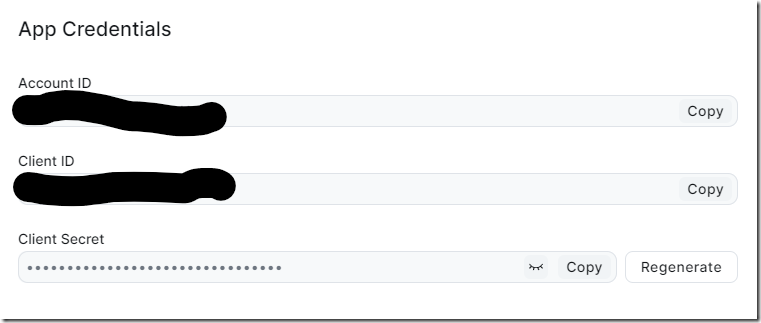
Your usage will vary, but there is a really nice role based model (or “Scope”) for the API – I gave this just read access to meetings – and it’s been fine.
import-module PSZoom
# get the values from the Zoom Marketplace
# Develop –> Build App –> Server-to-Server OAuth
$AccID = ‘from Zoom’
$ClientID = ‘from Zoom’
$ClientSecret = ‘from Zoom’
Connect-PSZoom -AccountID $AccID -ClientID $ClientID -ClientSecret $ClientSecret
$MeetingID = ‘meetingID’
$ZoomRegistrants = Get-ZoomMeetingRegistrants $MeetingID -pagesize 300
$reghashtable = $zoomregistrants.registrants
write-host $reghashtable.count
$outputs = $reghashtable |foreach-object {
return [pscustomobject]@{
fname = “$($_.first_name)”
lname = “$($_.last_name)”
email = “$($_.email)”
regtime = “$($_.create_time)”
}
}
$outputs | sort-object regtime | export-csv “zoom-meeting.csv” -notypeinformation
by ezs | Oct 17, 2023 | evilzenscientist
Here is a header
Some text that’s easy.
Tinkering with Markdown
I’m looking at using Markdown to write posts.


Recent Comments